Google Gemini “Unusual Traffic” Error: Causes and Solutions

2026-02-02

When using Google Gemini, many users run into error messages like “Unusual traffic”, “Something went wrong”, or “This service is not available in your region.” Based on real-world usage scenarios, this article explains why these errors occur, how LetsVPN optimizes Gemini access behind the scenes, and what you can do to resolve these issues quickly and with minimal effort.

Why Is Gemini Suddenly Everywhere—and Suddenly Error-Prone?

With the release of Nano Banana and Gemini 3.0, Gemini has been gaining massive momentum—some would even say it’s stealing the spotlight from ChatGPT.

For many users, it has already become a daily “work and study copilot.”

But if you use Google Gemini frequently, chances are you’ve seen messages like:

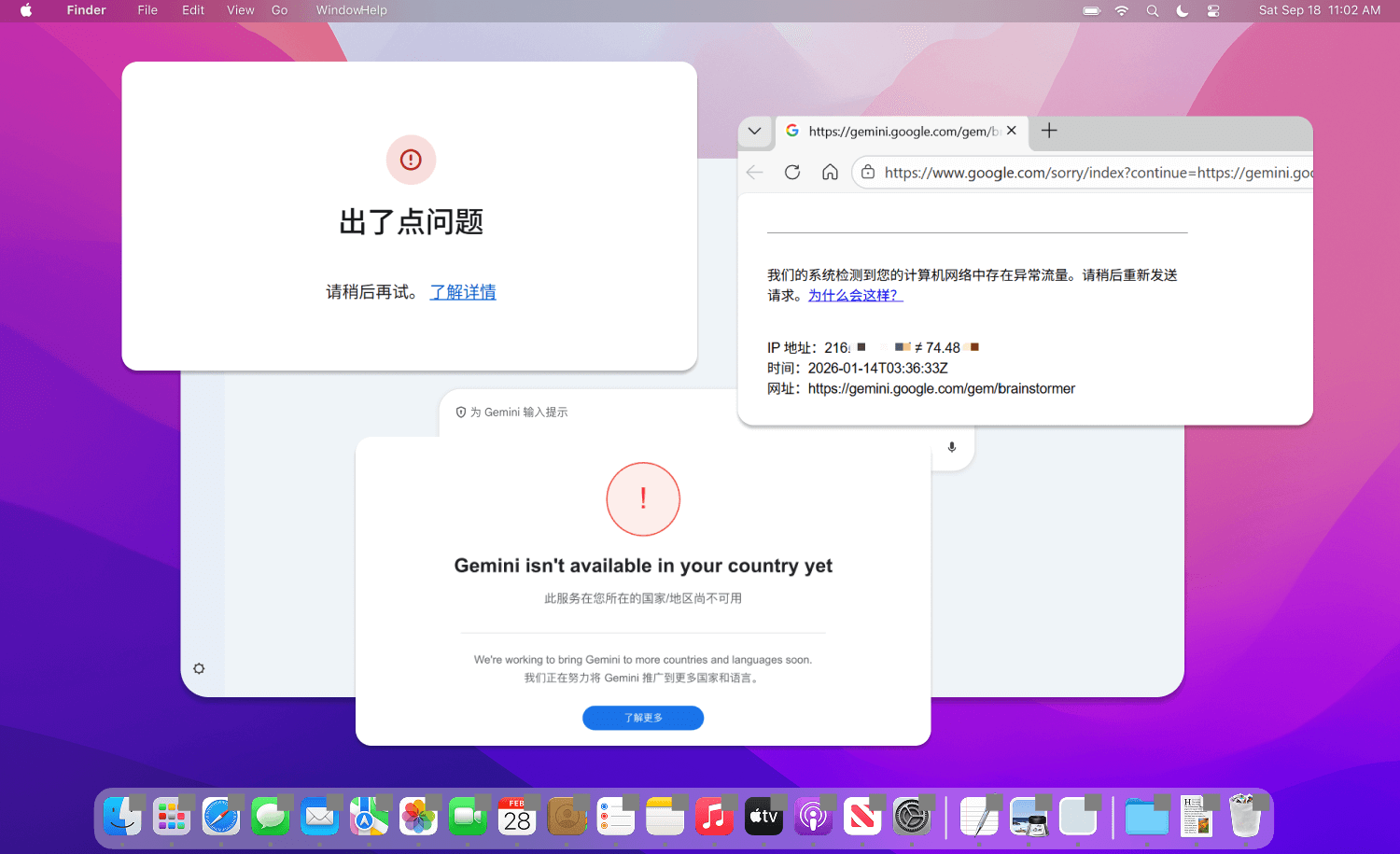
  • “Our systems have detected unusual traffic from your computer network.”
  • “Something went wrong.”
  • “An error occurred. Please try again.”
  • “This service is not available in your region.”
  • ...

You finish writing a long prompt, eagerly waiting for a response—and then one of these messages pops up.

Instant mood killer.

It’s like watching a show right before the climax, only for the app to crash and quit. Infuriating.

Why Is Gemini So Sensitive?

In short: Gemini’s security threshold is extremely high.

As one of Google AI’s flagship products, Gemini keeps a very close eye on user identity, request frequency, and connection patterns—constantly on guard against anything that looks automated or abnormal.

When you use a VPN, this can feel like sharing the same bus with a lot of other people, all heading to Gemini through the same network exit.

If, during a short time window, too many Gemini requests come from the same place, Google’s risk-control system may think:

“Wait—why are so many users suddenly coming from the same location?”

To stay on the safe side, it may temporarily slow things down or block access.

In most cases, this is a system-level false positive, not an issue with your Google account itself.

How Does LetsVPN Fix This?

If the problem is caused by “too many people in one place,” the solution is straightforward:

don’t let everyone crowd the same exit.

Instead of routing Gemini traffic together with everything else, LetsVPN treats Gemini as a special case and gives it dedicated handling—because, frankly, Gemini can be a bit temperamental.

1. More Distributed Network Exits

We actively avoid situations where hundreds or thousands of users hit Gemini through the same exit during peak hours.

By spreading traffic across a larger pool of exits, requests look more natural and evenly distributed from Google’s perspective—much closer to normal day-to-day usage, and far less likely to trigger alerts.

2. Smarter Routing for Gemini

We’ve also fine-tuned low-level connection and DNS resolution strategies specifically for Gemini, reducing those “perfect storm” moments where requests collide all at once.

These tweaks may sound minor, but at scale, the impact is very noticeable.

Does It Work?

Based on backend data and user feedback, the number of large-scale Gemini error spikes has dropped significantly.

Even when errors do appear occasionally, most users can resolve them on their own within minutes.

If You See These Errors Again, Try This First

From internal testing and real-world use, these three methods have the highest success rate.

1. Don’t Get Stuck on One Node—Try These “Golden Regions”

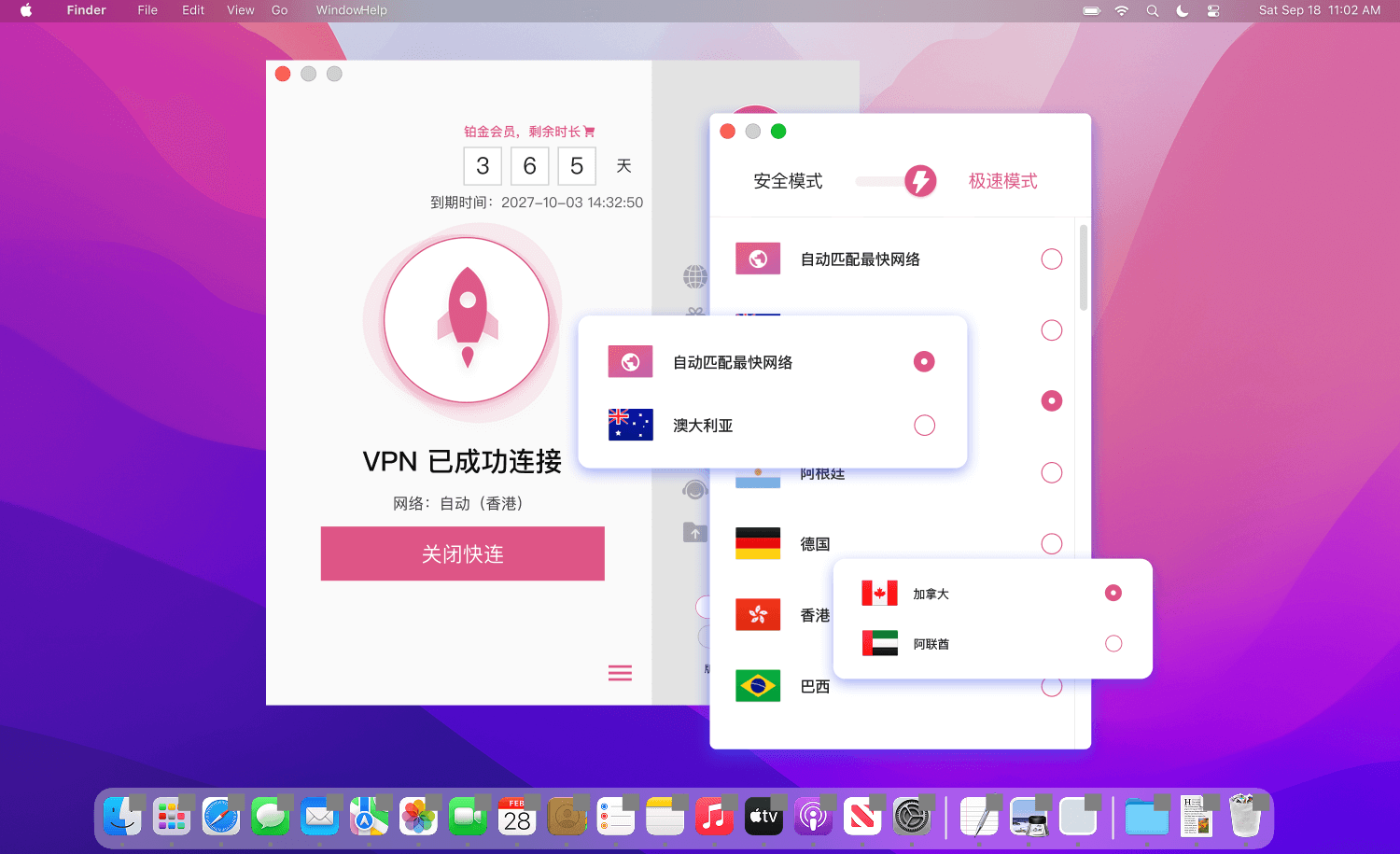
LetsVPN has applied targeted optimizations for:

Hong Kong, United States, Taiwan, Singapore, Japan, South Korea, and Malaysia

If you see “Unusual traffic” or region-related errors, don’t keep refreshing the same node.

Switch to another optimized region—for example, from the US to Singapore or Japan.

This often works much faster than retrying over and over.

2. Seeing “Something went wrong”? Restart the Session

If the page loads but actions fail and you keep seeing “Something went wrong,

the issue is usually the current session state—not the network.

Try one of the following:

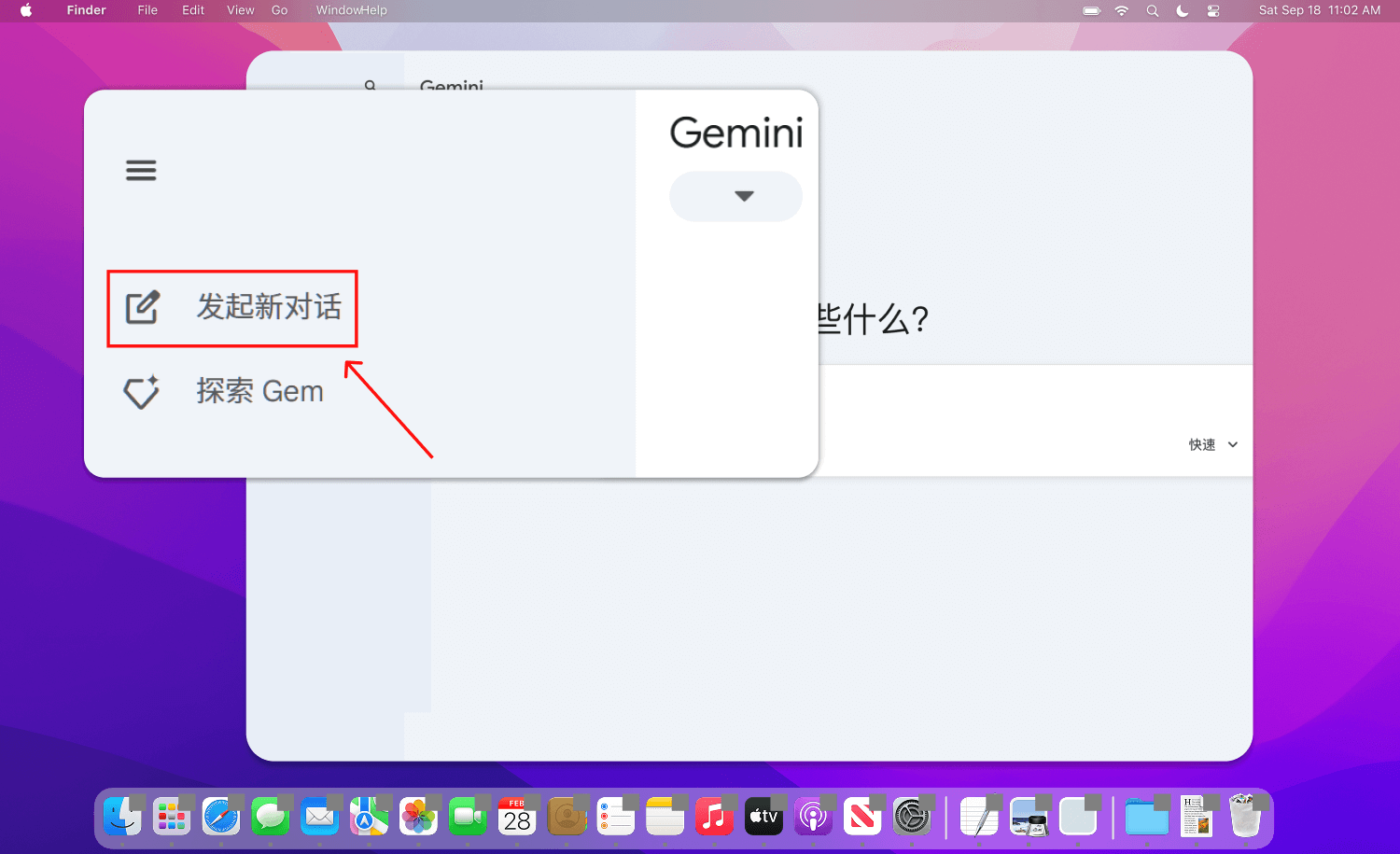
  • Open Gem manager
  • Create a new Gem / new chat

This forces Gemini to regenerate the session configuration and often clears the error instantly.

If you want the simplest option:

just start a new chat, or sign out and back in.

3. Using the Gemini API? Check Your Local Environment

If you’re a developer and see 400 errors or region not supported messages when calling the Gemini API, the problem is often local environment metadata, not the VPN itself.

Check whether:

  • Location permissions are enabled on your device
  • Browser cache or system location data is exposing your real region

Turn off location access, clear browser cache, and restart the app or browser.

Yes—it’s the classic “turn it off and on again.”

And yes, it still works surprisingly well.

One Last Thing

To be honest, Google’s “better safe than sorry” risk-control approach can be frustrating.

If none of the three methods above work, don’t keep wrestling with it—just contact support.

You focus on using Gemini smoothly.

The headache of dealing with Google’s guardrails?

Leave that to us and our sleep-deprived engineers.